Painterly Shadows
- Article
- 21 August
- 9 min read

One of the challenges of stylized rendering has always been shadows for us. This is how we deal with them on Overgrown.
TL;DR: Jump to the 'how to' section if you're just here for the goods.
Intro
Stylized, or more specifically, painterly rendering has many challenges. For the image to come together perfectly in the desired art style one has to consider all aspects of 3D rendering. And, more often than not, there is at least one aspect that gives away the calculated precision of computer generated images.
For us, one of these breaking points has repeatedly been the topic of cast shadows. Perfect 3D rendered shadows that project the precise and detailed silhouette of the subject on a backdrop can go a long way to ruin a beautifully painterly vibe.
It's quite a challenging problem to solve, as it depends on the light source and the subject casting the shadow as well as the surface receiving the shadow. Rather than stylizing the asset that's being rendered in shape, texture or surface, one has to somehow hook up to the rendering process itself.
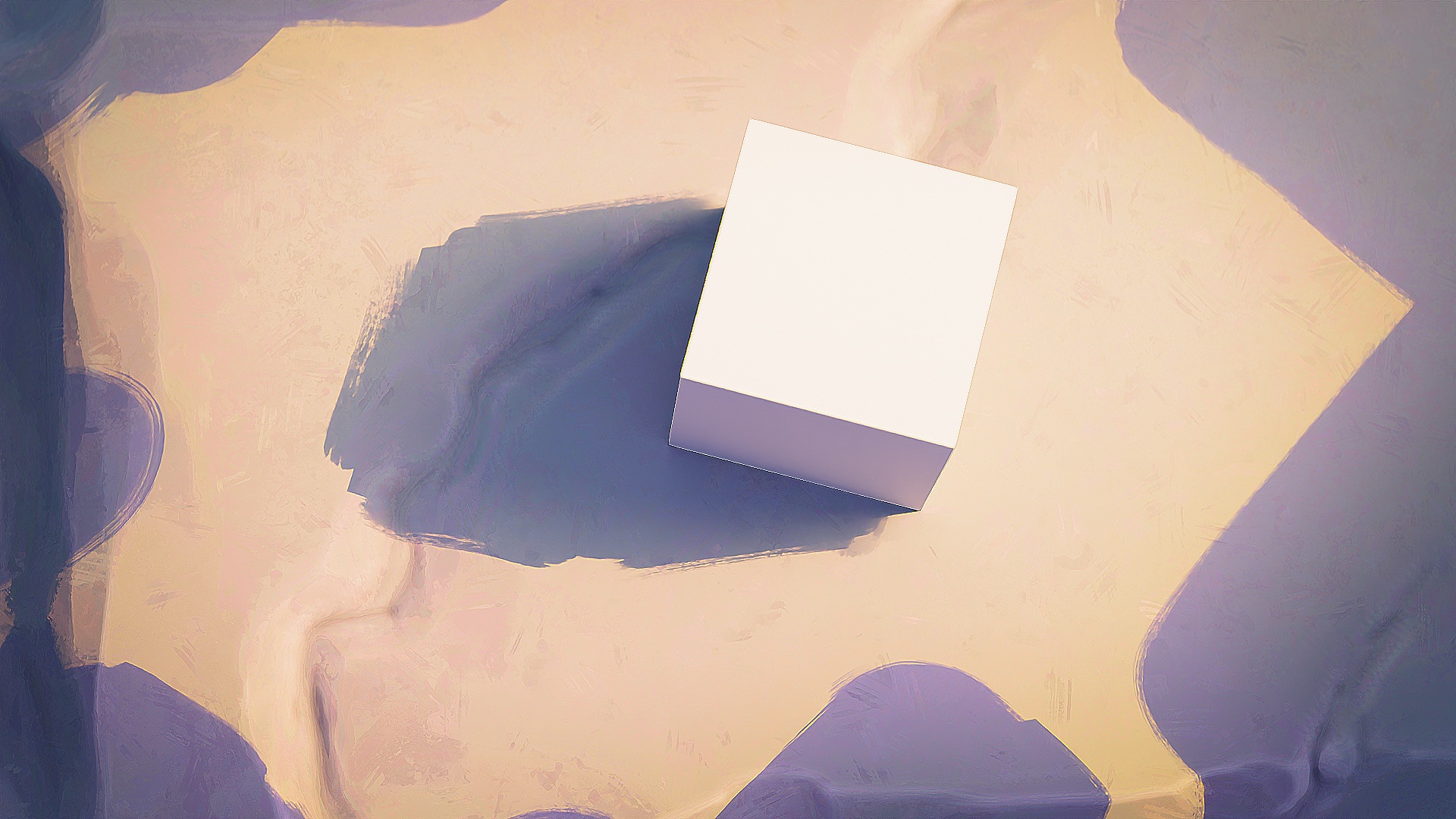
History
So far we've made a few attempts at pushing our stylistic ambitions to the level of painterly shadows, but it was never quite achievable or important enough to spend a lot of energy on.
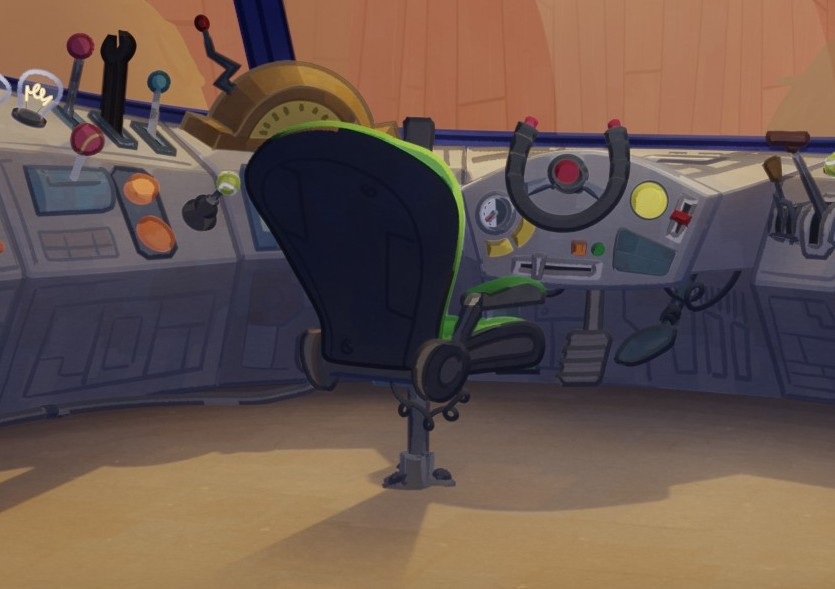
In Wing It we stylized the shadows by being very selective about what does and what doesn't cast a shadow. In certain instances we even created a shadow proxy that would replace the subject with a simplified version for the shadow casting. This removed a lot of details and made the shapes simpler.
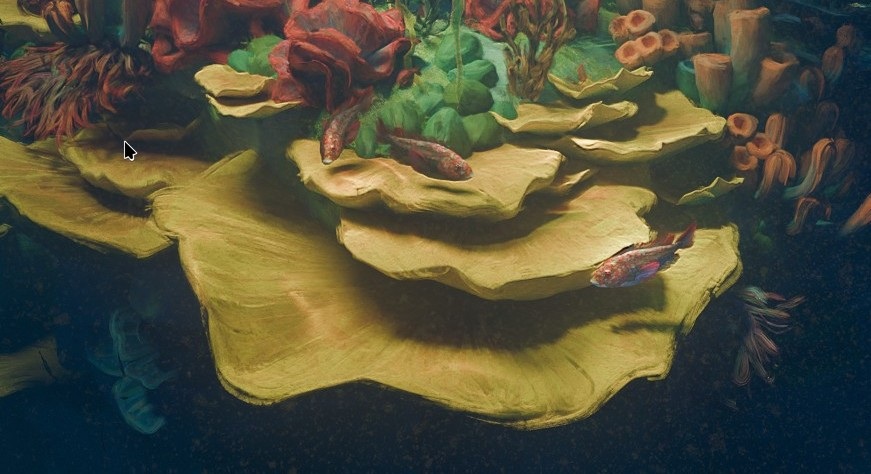
In Project Gold we were quite happy with how painterly the whole art style came together with broken up silhouettes and surfaces including diffuse and specular shading. But the shadows were the one thing we didn't manage to bend into shape to match. But we generally got away with it. We kept the cast shadows relatively soft and took advantage of the fact that the brushstroke geometry would break up the shadows with their bumpy surface. But the shadows didn't truly melt into the rest of the art style.
Now
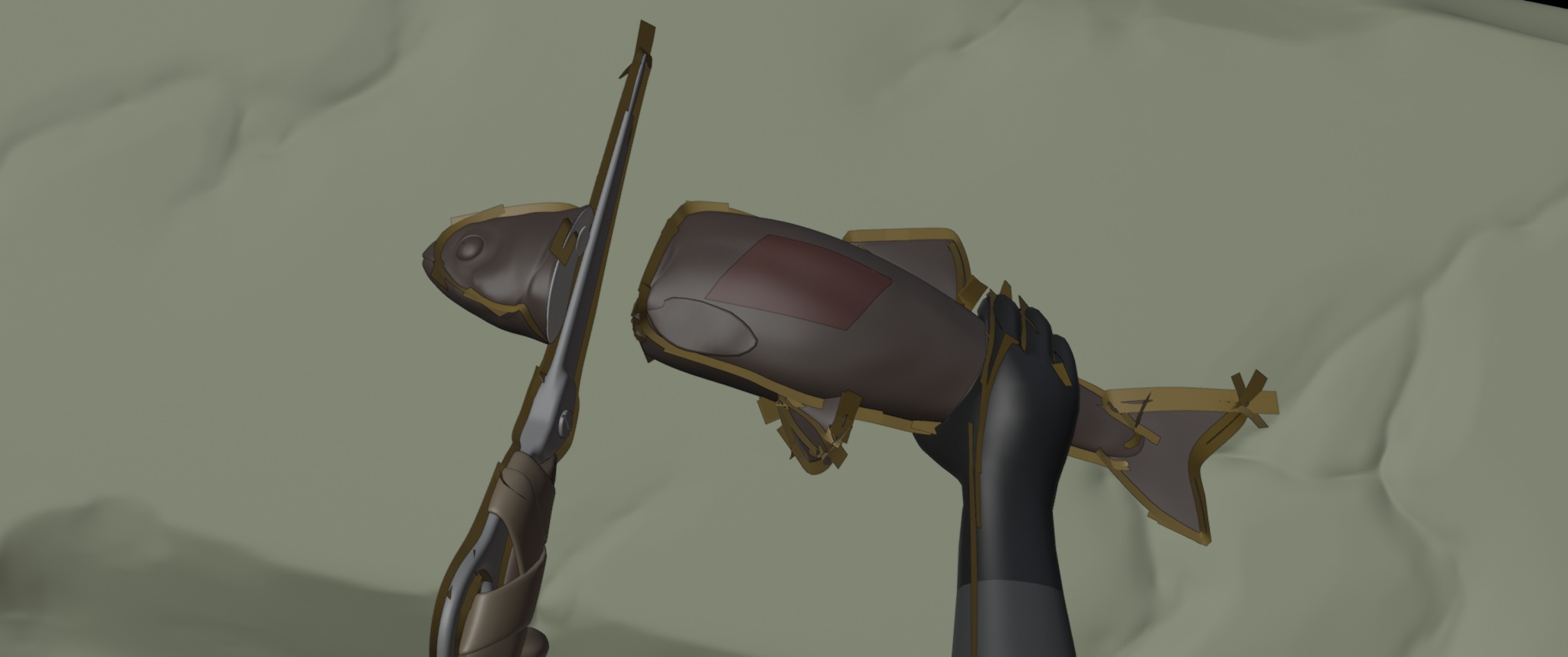
So now, for OVERGROWN, here they were again, these super clean and perfect CG shadows. Only this time the answer seemed so obvious. Instead of trying to make the shadow itself painterly, just give the subject casting the shadow itself a painterly edge. In fact, Andy had already done a good bit of shaping our shadow casters specifically to create nice shadow shapes. We'd just need to take this a step further and carefully generate shadow-casting brushstrokes around the edges.
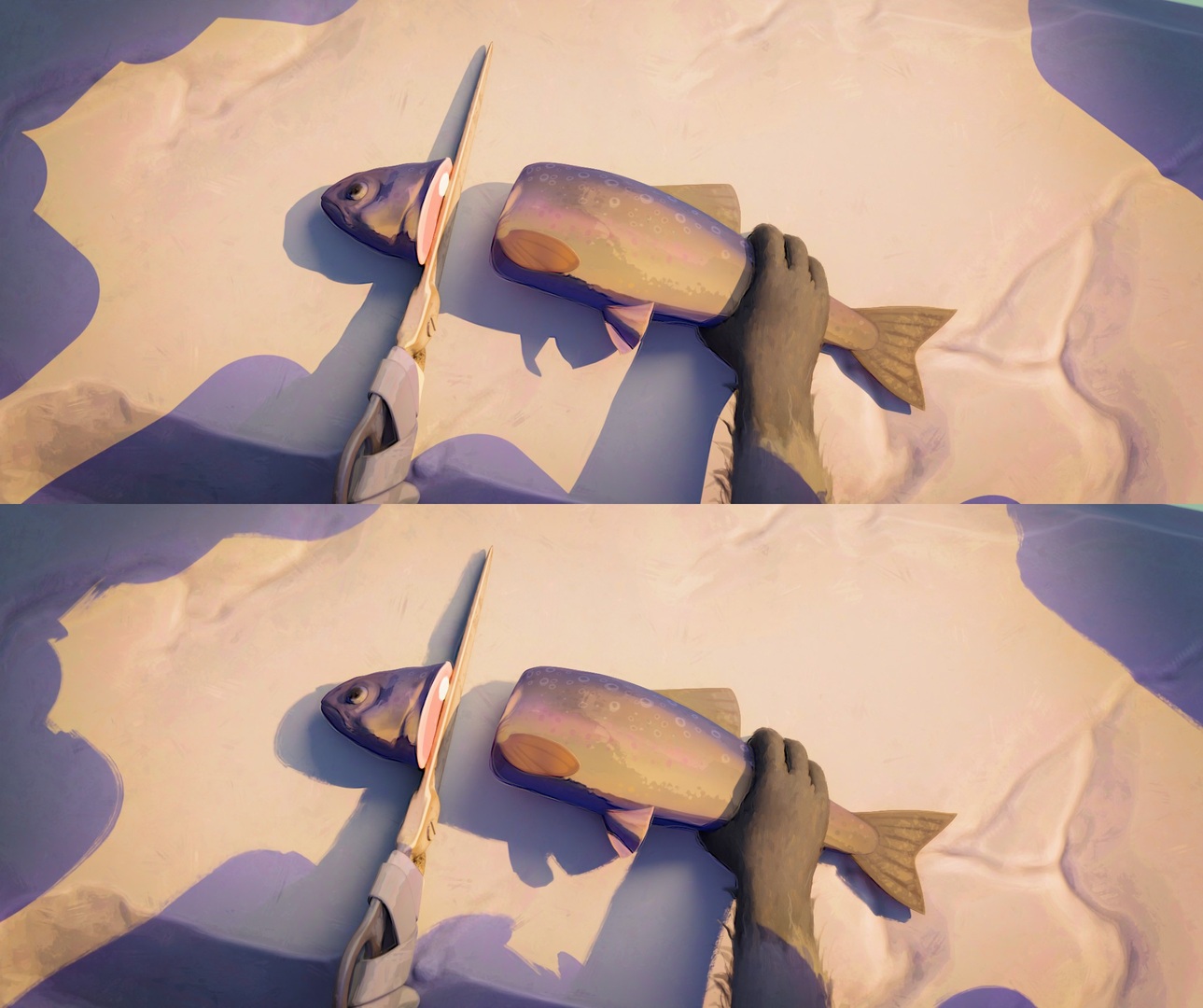
For that we could simply use the existing Brushstroke Tools setup we had developed for Project Gold. All it takes is a curve around the silhouette of what you want to cast the shadow. These brushstrokes would then add to the shadow of the subject with some brushy detail.
Shadow Casters
A lot of shadows in our production are placed by hand via a shadow caster. That's a simple mesh (usually a plane), which is invisible to the camera and only exists to cast a specific shadow. This is an important lighting tool for manually controlling light and dark areas.
Since our art style for OVERGROWN had very sharp shadows, the shapes of the shadow casters would be visible in clear detail. For that reason Andy made a setup with Geometry Nodes to round off rectangular planes and even experimented with giving them a textured edge to soften the edge slightly. So the idea to convert the edges into lines of brushstrokes came pretty naturally.
This would be as simple as extracting the boundary edge as a curve and feeding that into the node-group from Brushstroke Tools.
Everything Else
That worked great and required little extra effort for our shadow casters, which we already had. But arbitrary 3D geometry is a bit more tricky, especially when it's animated.
Silhouette
First things first, we'd need to generate a curve around the silhouette of a 3D mesh in relation to a light source, just so that the brushstrokes would follow the outline of the shadow.
Thankfully that's quite easy to do with Geometry Nodes. I could use the same technique as I had used for the outlines in Wing It. Only here, instead of the camera, the view point to generate the outlines from is the light source.
Self Shadowing
The only real problem with this is that spawning the brushstrokes directly on the surface of the mesh means that they cast a shadow on that mesh itself. Luckily this issue is easy to avoid with a little setup in the shader nodes of the shadow caster to fade them in depending on the ray distance.
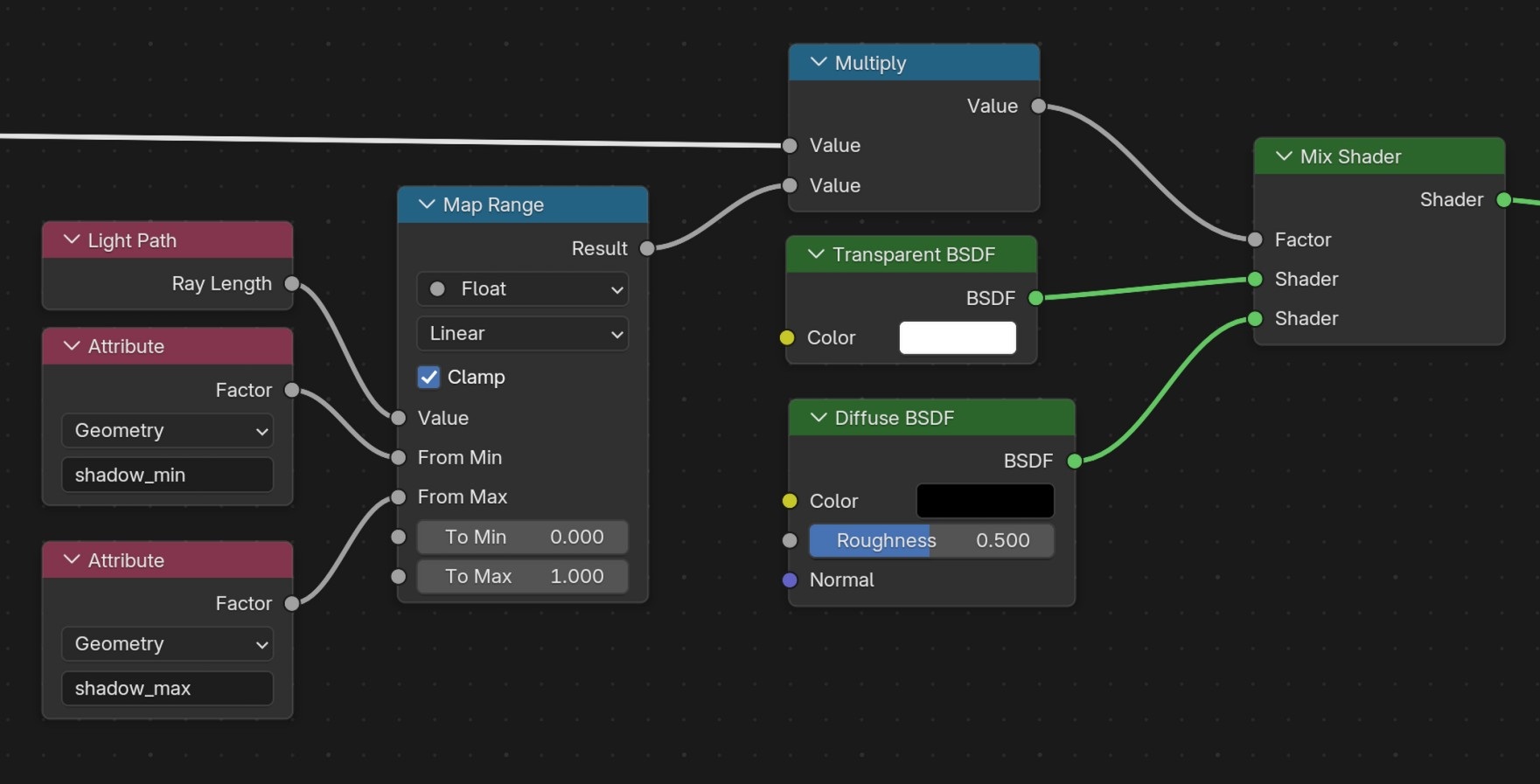
That way shadows are only cast further away. Of course, contact shadows are also affected by that, but the range can be fine-tuned to avoid unwanted shadows while keeping the desired ones.
Motion and Deformation
Moving and deforming geometry will make the shadow change its shape, so the brushstrokes would need to do so too. But getting consistent brushstrokes that morph into different shapes and don't pop in and out of existence would be way too difficult to pull off procedurally and we might end up with more work.
Sometimes it's better to admit defeat in the interest of moving forward and settling for the option that'll actually get the job done. So no, unfortunately this method does not present a magic solution for stable shadows that look like they were painted in with a brush at the press of a button.
But if you're willing to press two buttons, this solution is actually getting quite close in my opinion.
As long as the movements aren't that crazy and complicated, the shadows don't actually have to change all that much. They mainly need to move along with the mesh. So the logical solution was to choose a representative frame for the shot to generate the brushstrokes and then deform them with the geometry for the rest of the shot.
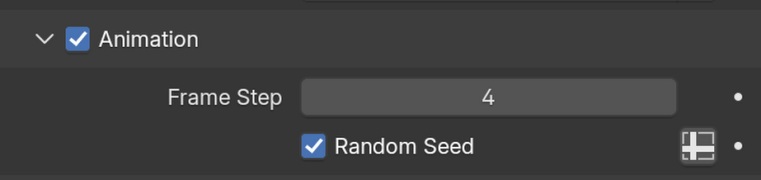
Another solution would be to use a simulation zone to update the shadows more dynamically. For example, this could be triggered every 4 frames. That still creates the popping, but in a way that might feel more intentional.
For us it worked best to find a good frame and use that for the entire shot, since we didn't want any popping with our art style. It's also possible to just bake two or more shadows for different light angles on different frames. That allows for covering different angles while still avoiding the popping.
For the overgrown teaser we basically decided we'd pick and choose where we'd want to add these painterly shadows and where they'd actually make an impact. That way it wasn't too much work to add these in one by one and we didn't need to worry about a whole procedural system on top of everything that would inevitably break.
How To
File for download:

Blender File - 6.5 MB - CC-BYshadow_outline-resources.blend
(Compatible with Blender 5.2 LTS and up)
- Make sure to use a sharp light as your main light source. This is required to project a sharp image of the brushstrokes.
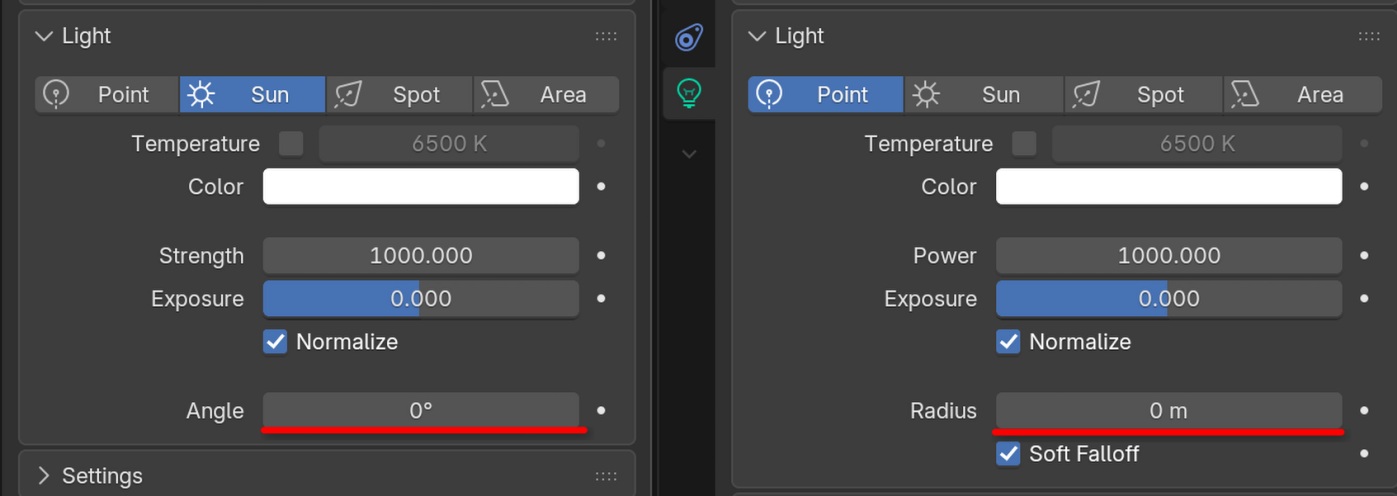
- Append or link and override the
LGT-shadow_outlineobject from the resource file into your scene.

- In the modifier properties:
- Select your main light source and which type of light it is (spot and area lights count as point lights, since they are location based)
- Select your subject casting the shadow.
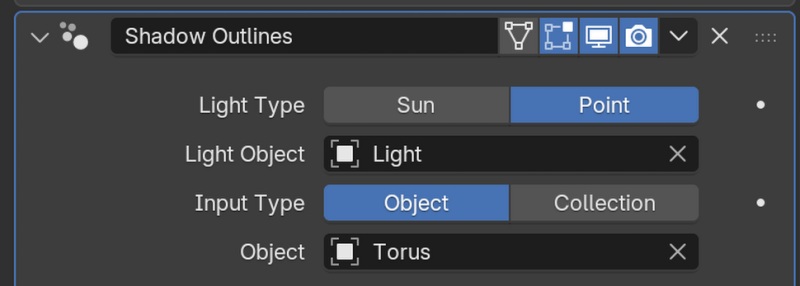
- Find a frame with a representative shadow for your scene.
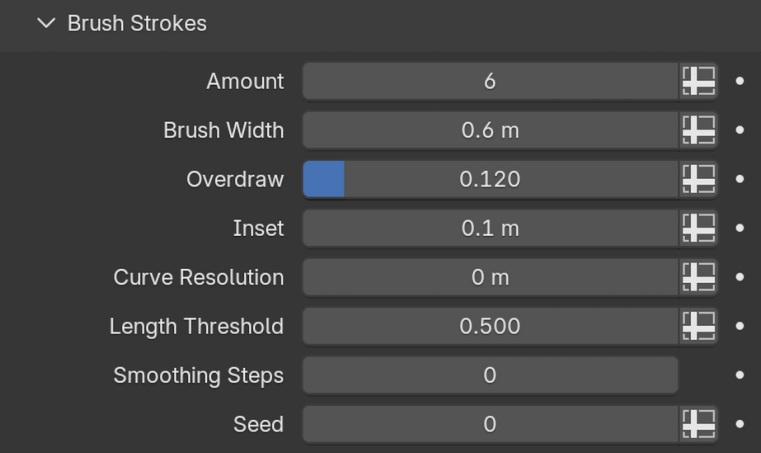
- Tweak the settings until you find a result that you like.
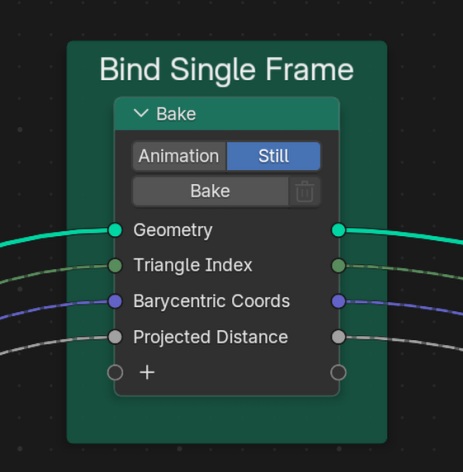
- Open a Geometry Nodes editor and find the bake node that says 'Bind Single Frame' to bake and bind the resulting brushstrokes to the surface. The brushstrokes should now attach and follow the surface for the rest of the animation.
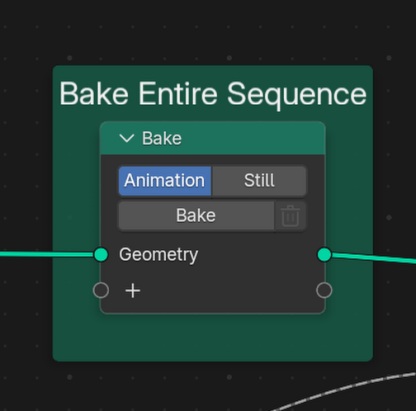
- Optional: Bake the deformation for the entire shot. This is useful if you're using subdivision surface modifiers, since the binding will break when topology changes.
- If the shadow shape changes too much from the frame you baked:
- You can either choose to use animated brushstrokes ...
- ... or you can simply duplicate the shadow outline object, find a different frame that represents the range you are missing and repeat the process until your subject is covered in shadow outlines.
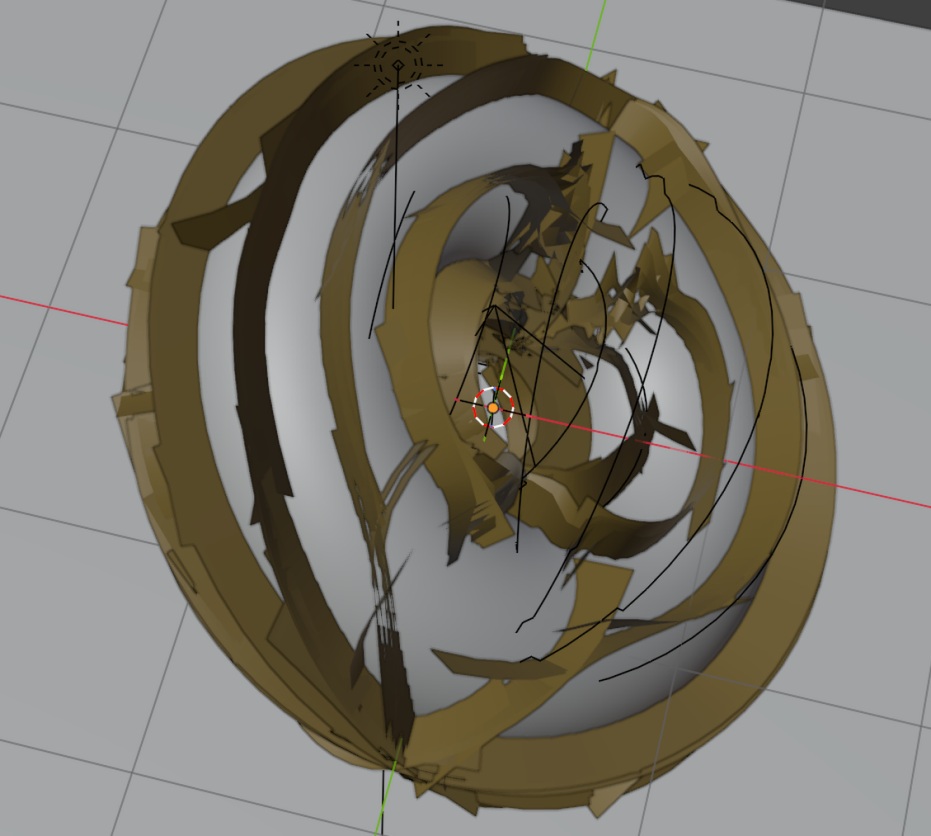
There are some things you need to consider for the render settings to avoid funky artifacts.
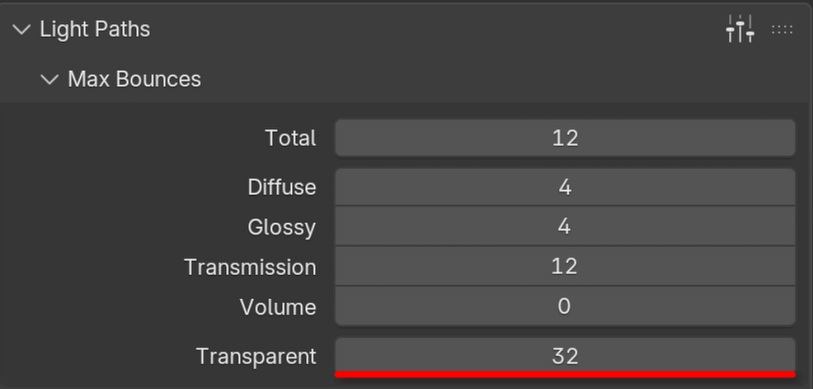
- Set your transparent bounces at least to the number of brushstrokes. The higher the better, though this might make rendering slow.
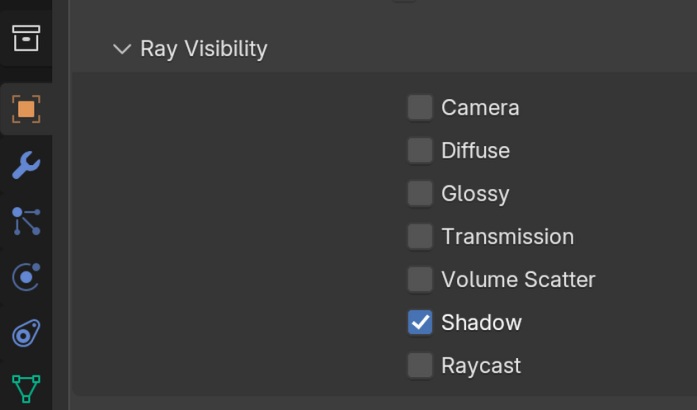
- Make sure object visibility is off for everything but shadows. This should be the case already by default, if you use the object asset.
And you're done!
Bonus: Brushy Outlines
This same technique can also be used in other ways. Essentially the setup is generating an outline from the perspective of the light source. But one could also generate the brushstrokes as an outline from the perspective of the camera.
Not my most recommended way of creating outlines ever, and it requires some additional setup. You've been warned!
Simply select the camera object as your light object (as a point light), make sure the object is visible to the camera and that the shader is as well.
That's it! Give shadows outline from the resource file a try and set up painterly effects in your own scenes. Make sure you use Blender 5.3 Alpha.
Join to leave a comment.